Start with your own video and subtitles
A practical Centum guide: import an MP4, add learning and native subtitles, loop a line, record your voice and keep your progress.
Prepare local files
Choose material you have the right to use. A local MP4 with H.264 video and AAC audio is a good starting point across platforms. Other codecs depend on the device.
Prepare a matching SRT in the language you are learning. A second SRT in your own language is optional. Subtitles burned into the video image is not a separate subtitle track; sentence practice needs accessible subtitle text.
Import and check playback
Open the library’s import action, select the video, then select the subtitle files you want to use. Check a line near the start and another later in the video to see whether timing matches.
Without accessible subtitles you can still try the first viewing and listening stages. If a Mac reports that it cannot access a file, use the material’s video re-selection action to grant access again.
Practise one sentence
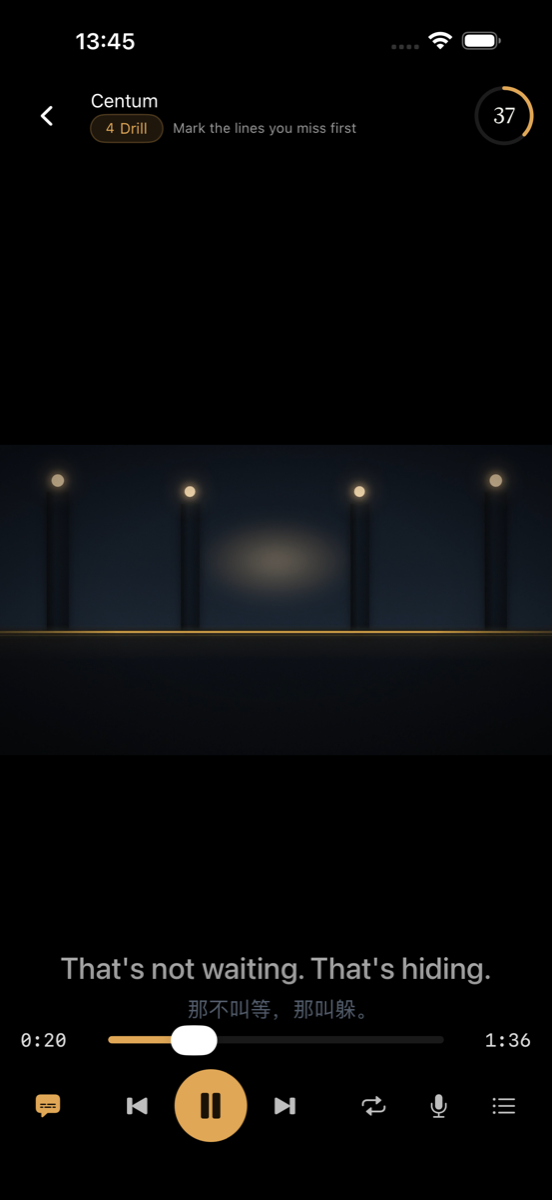
Choose a line in the sentence list to repeat it. In the recording exercise, Centum plays the original, gives you a turn to speak, then lets you listen back. Microphone permission is needed for your recording.
A sentence drill and a complete pass have separate records. Scrubbing through a video does not replace listening through it.
Adjust the same material
In Material & subtitles, replace the video reference or either subtitle file for the same film. Your complete-pass records and notes are retained; start a new material for a different film.
You can adjust the subtitle font and size, and set a colour for each of the two subtitle tracks. Switch to audio-only playback when you want to listen without the video. Playback in the background or with the screen locked remains subject to device settings and operating-system restrictions.
Keep a backup and use official updates
Before changing devices or uninstalling Centum, export a backup of your learning records. The JSON backup does not include video files or voice recordings. Keep those files and your original subtitle files separately.
On Android, the official updater downloads and verifies the package after you choose to update. You still confirm installation in the system prompt. On Apple devices, use the App Store or a TestFlight build you have access to.