Keep listening in audio-only mode
Use a local video for listening practice, test playback with the screen locked, and return to video when you need the picture and subtitles.
Switch playback mode
Select audio-only mode in the player to listen to the current video without displaying the picture. Switch back to video when you want to see the scene and subtitles.
This mode uses your selected material. It does not require uploading the film or creating an account. Microphone access belongs to the recording exercise, which is a separate action from listening.
Use the system playback controls
Start a short test before putting the device away: confirm that you can hear it, lock the screen and use the available system or headset controls. Keep the source file accessible.
Android battery and background restrictions can stop media apps. Check the settings for Centum if playback is interrupted. On Apple devices, follow the system’s media controls; a sleeping Mac can stop playback.
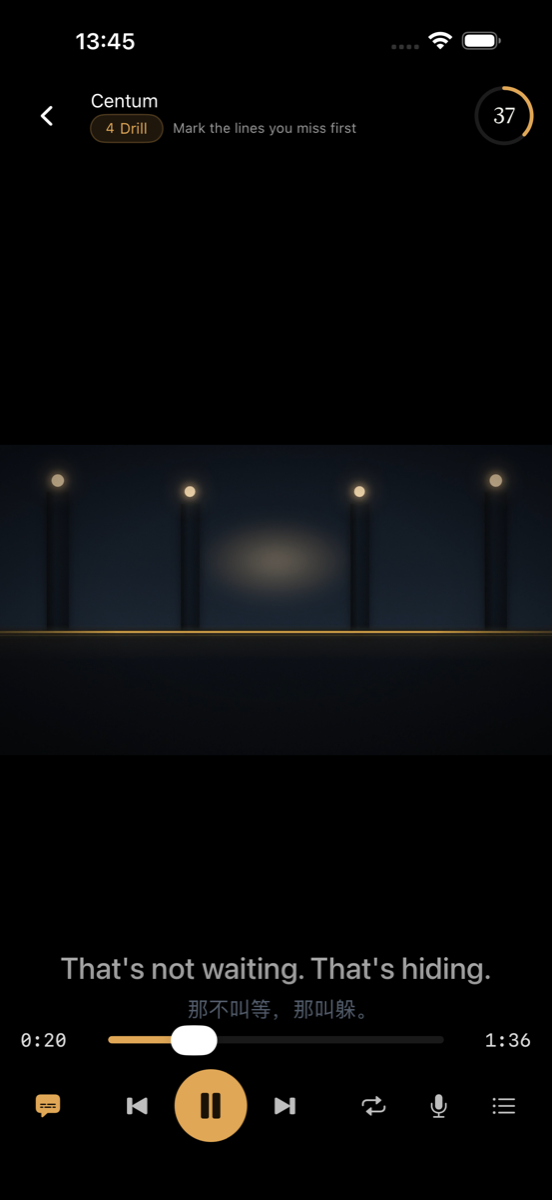
Return to the picture
If you hear audio but see no picture after unlocking, check whether audio-only mode is still enabled and switch back to video.
If playback does not resume as expected, note the app version, operating system, device and file type. Check the official update and the original file before deleting or reimporting the material.
Understand what a pass records
Listening can contribute to a complete pass under the same playback-coverage rules as watching. Repeating one short line is a sentence drill, not a new full-film pass.
Turning off the display and video presentation can reduce work, but actual power use depends on the device, decoding, screen and background policy. Centum does not promise a fixed battery saving.