Choose and check bilingual subtitle files
Match an SRT to the video cut, distinguish burned-in text from subtitle tracks, and check two languages before sentence practice.
Start with a matching SRT
For sentence practice, prepare subtitle text in the language you are learning. A native-language SRT is useful for checking meaning. UTF-8 is a practical choice when saving text files, especially for non-Latin scripts.
A subtitle file belongs to a particular timeline. An extended cut, a different frame-rate conversion or an extra opening sequence can shift it. Check the beginning and a later scene before relying on the sentence list.
Distinguish text from pixels
Subtitles visible in another player may be burned into the picture. Those pixels cannot themselves become editable sentences or loop boundaries. For this guide, prepare a separate SRT subtitle file.
Some embedded subtitle formats can be read, but container and codec support varies by platform. Bitmap subtitles and complex styling are different from ordinary timed text. A separate SRT is the clearest starting point when troubleshooting.
Check both language tracks
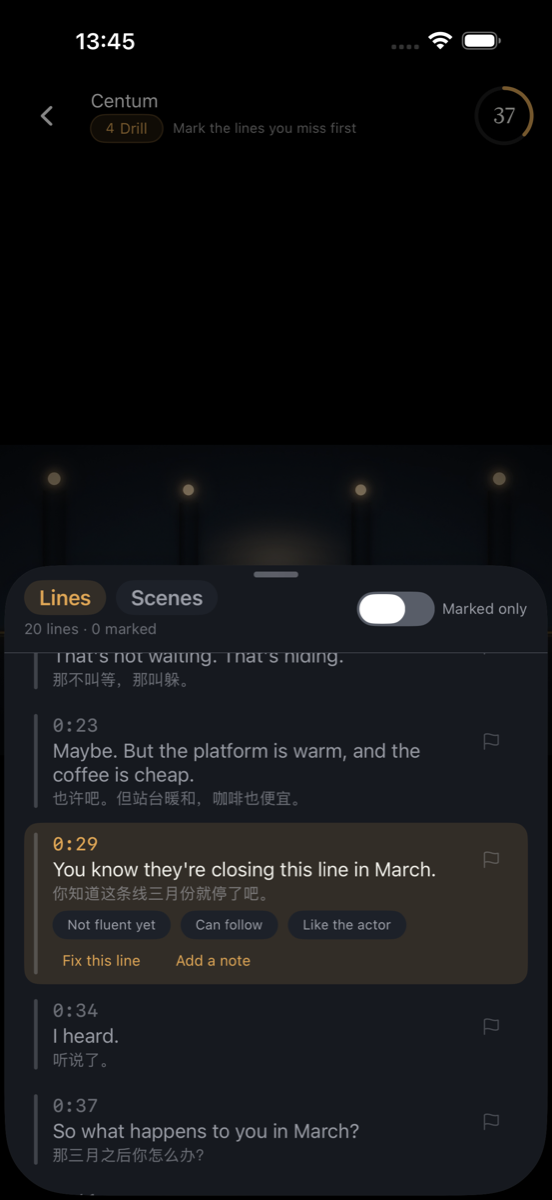
Read one learning-language line and its native translation over the same scene. The two files need to describe the same cut. A natural translation may combine or split sentences, so line numbers alone do not establish a match.
If the text is garbled, reopen the original subtitle file using the correct encoding and check that the characters are readable before saving a new UTF-8 copy. Re-saving garbled text as UTF-8 does not restore the original characters. If timing drifts, use subtitles that match the actual video version rather than reimporting the same incompatible file.
Replace the file and try a loop
Use Material & subtitles to change one track at a time. Play a line, repeat it and compare the picture and sound. Keep your original SRT files separately from study-record backups.
The learning subtitles determine the sentence list. After replacing them, check where the new sentences start and end. Review unmatched records from the previous subtitles through “Previous subtitle records” before continuing sentence practice.